








Price :
QTY :
CART TOTALS :
There are items
in your cart
CART TOTALS :
With this products also buy:


We identified: …


Adapter Socket: USB 2.0
Applicable Network Type: Fast Ethernet
Application: Desktop
Bluetooth Protocol: Bluetooth 5
Brand Name: Vention
Certification: RoHS
Choice: yes
Devices: For Laptop/PC/Desktop/Notebook
Frequency: 5 GHz
Frequency Band Class: Dual-Band
Heat dissipation: Support
High-concerned chemical: None
Interface Type: USB 2.0
Kind: External
Model Name: KDU
Model Number: KDUB0
Operating Frequency Band: 5GHz & 2.4GHz
Origin: Mainland China
Package: Yes
Product Name: Wifi adapter / USB Wifi / USB WiFi Adapter / USB Ethernet Adapter / USB Ethernet / Network Card / Wireless network card / WiFi Dongle / WiFi Extender / WiFi Repeater / Wireless Adapter / WiFi Antenna
Transmission Rate: 433Mbps,AC650
Transmission Speed: 600 Mbps
Type: WireLess
Wi-Fi Supported Frequency: 2.4G & 5G
WiFi Version: Wi-Fi 5
Wired Interfaces: None
Wired socket: None
Wired transmission rate: None
Wireless Communication Standard: 802.11.ac
Wireless Protocol: 802.11n,802.11a/g,802.11ac
Wireless socket: USB 2.0
Wireless transmission rate: 600m
Working Mode: Receive & Launch WiFi
additional function: USB Receiver,Adapter Bluetooth
semi_Choice: yes
A More Powerful
High-Gain WiFi Experience
USB Wi-Fi Adapter Easy to Solve the Problems:
(1) If you want to connect your desktop/laptop to the Wi-Fi network, you can connect the VENTION Wi-Fi adapter to your desktop/laptop, then your PC can connect to the WiFi network.
(2) When your desktop PC is connected to the network cable, the desktop or floor may be cluttered, then you can connect a VENTION Wi-Fi adapter to your desktop PC, and your PC can connect to the WiFi network.
(3) Computer's original old network card, have a slow download speed and poor signal, you can replace it with our Wi-Fi Adapter, to improve user experience.
(4) The original network card of the computer is damaged and cannot be used normally. You can purchase our Wi-Fi Adapter to reduce the time and cost of replacing the original network card. Longer Distance and Wider Range
Compared to the built-in NIC,6dBi high-gain antenna
boasts father signal transmission and more penetrating power Angle Adjustable Antenna
Rotate and adjust the multi-directional antenna even
in narrow spaces for better signal reception Dual-Band Perfectly Meets Your Needs
2.4GHz(200Mbps)
Strong Penetration
Long Transmission Distance
Slow Signal Decay
5GHz(433Mbps,suitable for 500M broadband)
Large Bandwidth
Less Interference
Low Latency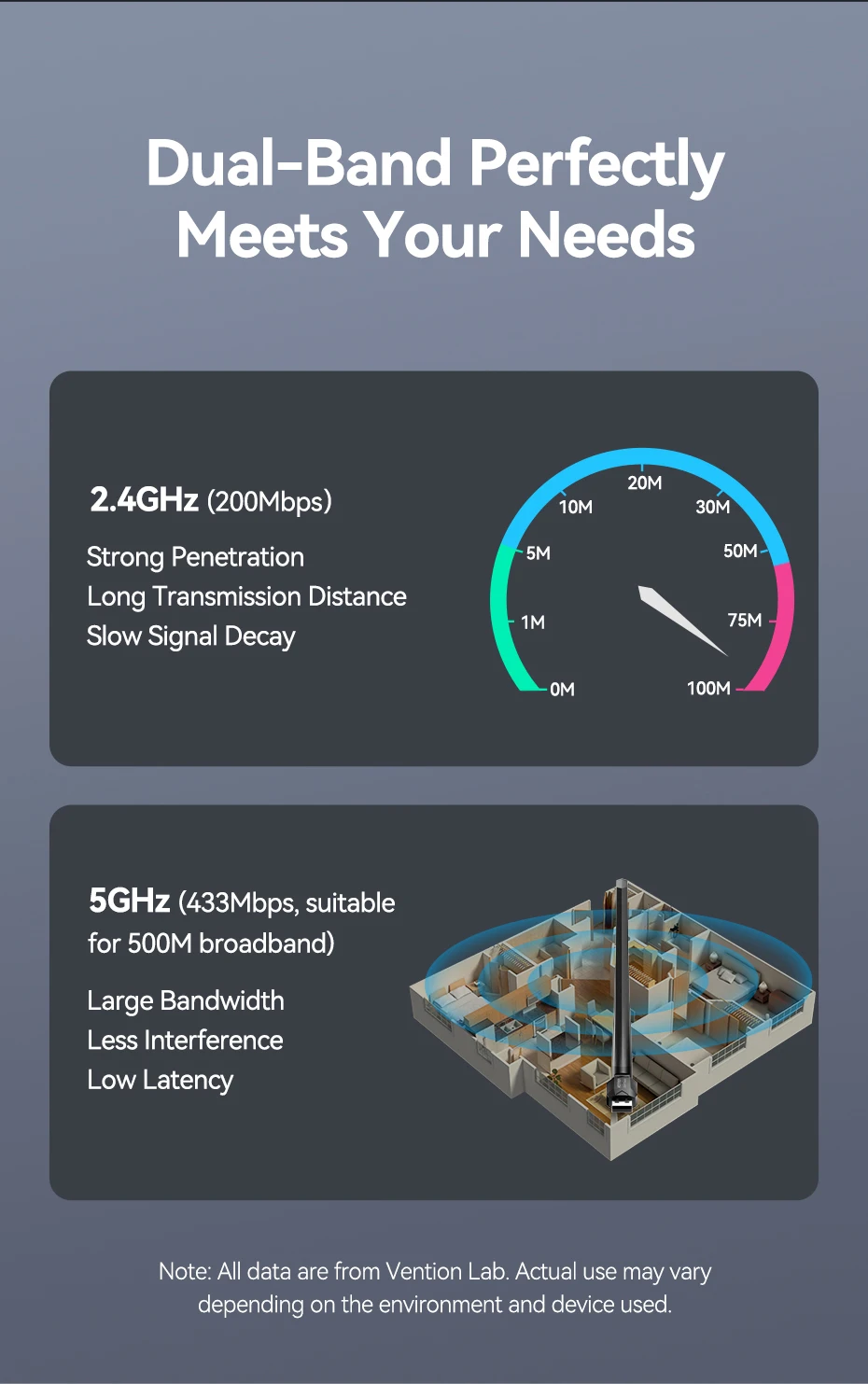 Wi-Fi Receiving & Transmission
Wi-Fi connections of desktop/laptop
Say goodbye to ethernet cables Transmit Wi-Fi without a router
Connected computer transmits Wi-Fi signals to other devices Smooth Lag-Free connections
Adapting the Wi-Fi5 technology,data transfer rates on
the LAN is faster and more stable in any situation 7 Devices Connected Simultaneouly
Support multiple bluetooth devices to connect at
the same time with equal stable and smooth signal Secure Your Personal Data
Support encryption and security protocols such as WPE
WPA/WPA2,WPA-PSK/WPA2-PSK and MU-MIMO Realtek Chip for Better Performancce
The Realtek chip greatly improves data processing and wireless
performance,and ensures more stable and efficient data transmission Only windows Supported
 Specifications
 Accessories & Packaing Display
 Quick Installation Guide
Operating instructions
The product requires manual driver installation on some devices or systems
Download link:https://www.vention.cn/support/#Download
*Please ensure correct installation of drivers corresponding to your system and the product model
A:Install the Wi-Fi Driver
1、Insert the USB Wi-Fi adapter into an available USB port on your computer 2.Open "This PC" or "My Computer" on yout desktop
3.Double-click to open the CD dreive
4.Locate and open the "Wifi Autolnstall Setup"folder,then click "Install" until the
installation completes automatically and the interface disappears 5.Click on the WiFi icon in the taskbar on the right,select the desired WiFi network
and click"Connect" to complete the installation of the wireless network adapter
B:Install the Bluetooth Driver(Only for Windows 7)
1.Ensure that the USB Wi-Fi Adapter is plugged into an available USB port on your
Computer.In the downloaded Bluetooth driver(or insert the CD-ROM into your CD-
ROM drive and open it),locate the Bluetooth folder and double-click "Setup.exe." 2.Follow the on-screen instructions to install the Bluetooth dreiver
3.Click "Next" to proceed with the installation 4.Select "Yes,I want to restart my computer now"
5.Bluetooth Connection:
a.Click on the Bluetooth icon located in the lower right corner of
the computer screen
b.Right-click the mouse and select"Add Device".
c.Ensure that your Bluetooth device is turned on and ready to pair d.Once the Bluetooth device is detected,double-click its icon to
initiate the pairing process(e.g.,Bluetooth headphones).


